

Q : Why I am not able to install the driver in windows 7?
A :Please try to download the updated driver from our website.
For the HIS Driver you need about setting up your graphic card, please find below for your reference:
http://www.hisdigital.com/un/download1-535.shtmlQ : Using ATI Catalyst™ Control Center to enable Eyefinity feature in HIS Eyefinity-compliant graphics cards
A :Operating Systems:
- Microsoft Windows 7
- Microsoft Windows Vista
- Linux ‐ scheduled to be enabled via a future ATI Catalyst™ driver releaseNumber of Monitors:
- Up to six dependent on graphics card configurationMonitors:
- DisplayPort is highly recommended offering optimal flexibility with the highest number of
display outputs
- Two display outputs of either DVI, HDMI, or VGA can be combined with DisplayPort outputs up
to a total of six monitors per GPUGeneral instructions using CCC to to enable Eyefinity feature in HIS Eyefinity-compliant graphics cards
- General Setup
- Creating a 3x1 Display Group – Landscape Mode
- Remembering a Display Group / Configuration
- Creating Different Display Groups
- Other Display Group Actions
- Example Extended and Duplicated ConfigurationsQ : Method to enable HD Video Playback for some ATI cards
A :ATI driver does not officially support hardware acceleration over 4350 PCI bus. However, you can still enable the HD video playback & Avivo Video Functions by using a third-party software called DXVAChecker. Details procedure can be found in this link:
Method to enable Avivo Video Functions for some ATI cards.
http://forums.amd.com/game/messageview.cfm?catid=279&threadid=116888Please note that the above setting are not 100% guaranteed to be correct and working well under all circumstances.
Q : ATI Driver Support for Linux Platfrom
A :(* Support PCI-Express based graphics card only)
The ATI Catalyst™ Linux Graphics Driver software suite is available in ATI Driver Download Section. The latest version is designed to support the following Linux distributions:
• Red Hat Enterprise Linux suite
• Novell/SuSE product suite
• UbuntuNote: The ATI Catalyst™ Linux software suite may install on a number of other Linux distributions. Refer to the Package Generation installation instructions for more information.
Note: AMD has contributed packaging scripts to allows creation of other packages, but does not necessarily test, verify or warrant the reliability. Currently Red Hat Enterprise Linux suite and Novell/SuSE product suite are supported Linux distributions.
Please check the release note before installation: AMD Proprietary Linux Release Notes
Latest Linux Catalyst 9.2 Download:
http://support.amd.com/us/gpudownload/linux/Pages/radeon_linux.aspx?type=2.4.1&product=2.4.1.3.36⟨=EnglishLinux Driver FAQ:
http://ati.amd.com/products/catalyst/linux.htmlQ : How to enable Audio Over DVI to HDMI dongle and HDMI in Windows XP or Windows Vista / Windows 7?
A :Windows Vista / Windows 7 Users:
Go to Control Panel (select classic view in the top left if needed)
Now find sound and click on it.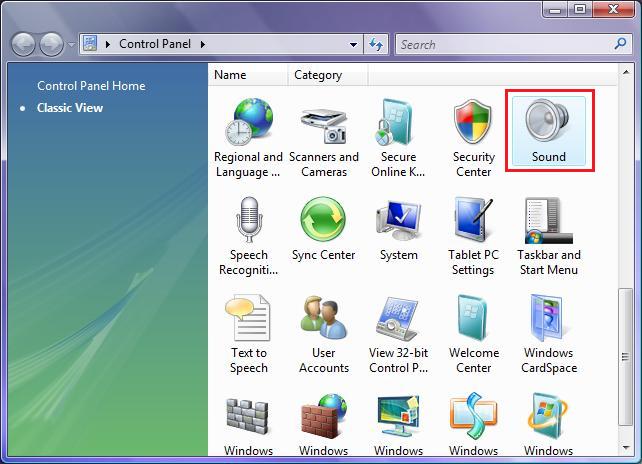
You should now see a list of playback devices, select Digital Output Device (HDMI) and right click on it. (depending on your HIS graphics cards and it could be slightly different)
On the right click menu select Set as Default Device.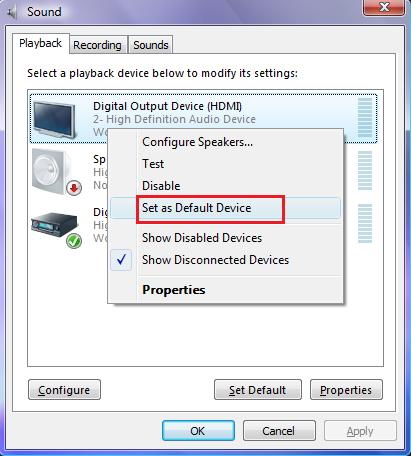
That’s it, simple as that! The audio controller on your HIS graphics card will be the default sound device.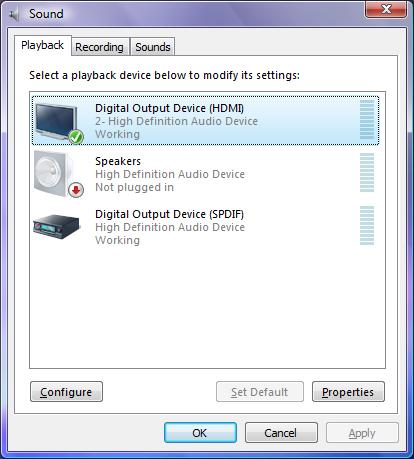
You might have to select the volume control in to the system tray and ensure the volume is fully turned up.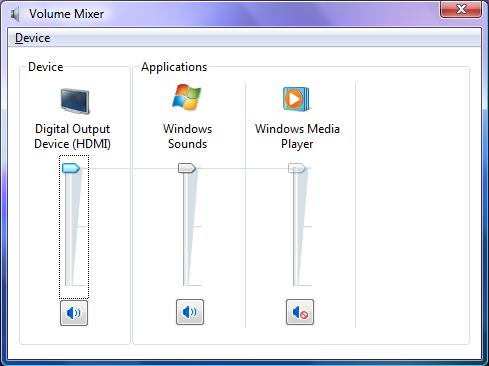
Your sound will now be going through the HDMI cable to your TV or Receiver as well as the picture.
If you ever want your sound to play though your computers sound card just set it as the default device again.
Windows XP:
For Windows XP it’s the exact same process the menu’s are just set out slightly different.
Click the start button, go to control panel and click switch to classic view in the top left if needed, then click on Sound and Audio Devices. You will then be presented with the Sound and Audio options for your computer, click on the Audio tab and select ATI HD Audio as the default device and click ok.
There you go, your sound will now be going through the HDMI cable to your TV or Receiver as well as the picture.Q : The installation procedures of PCIe x1 Card on motherboard with on-board graphic feature:
A :The answer as follows:
- Install on-board VGA driver and make sure it works properly.
- Disable on-board VGA under Device Manager and then reboot the system.
- Insert PCIe x1 card after disabled the on-board VGA.
- Install PCIe x1 card driver and reboot system when prompted.
- Back to enable the on-board VGA after PCIe x1 card work properly, and reboot system when prompted.
Q : X1K AGP series Direct X unavailable
A :Recently, we have found out that X1K AGP series would not have DirectX enabled on some KT400 motherboard when using Catalyst 6.5 or later. This will result a poor performance or even error when running 3D applications/games.
Not all KT400 motherboard would have this problem. And not only KT motherboard, Intel/SIS may have this issue too. The driver fix will be available by October 2006.
For workaround, please use Catalyst 6.1 driver if you encounters such issue.
Users are recommended to check if they are affected by this issue. They can go to "System Information" -> "DirectX Diagnostic Tools" to check if DirectX is available or not. If not, users should uninstall the current installed display driver and re-install to use Catalyst 6.1.
Catalyst 6.1 is available at:
http://download.hightech.com.hk/driver/Radeon_8_205/8.205-060104a-029861C-ATI.zip
If DirectX is enabled, users/customers do not need to roll back to the old version driver.
Q : How to identify "Turbo" edition?
A :HIS Turbo edition guarantees a dramatic range of overclockable speed on your card. All IceQ II series come with both Turbo and non Turbo (standard) editions. Check for the box containing this label. It identifies this is a "Turbo" edition card and marked with the guaranteed overclocking speed in core and memory.
Q : How to identify IceQ / IceQ II series fit on my motherboard?
A :HIS IceQ / IceQ II series occupied double slots space and they suit on most motherboards available on the market, no matter PCIe or AGP. HIS would like to provide the approximate size of IceQ II and IceQ series graphic card for users to have further measurement.
- IceQ II Series - Width: 233mm, Height: 129mm, Depth: 57mm (approx.)
- IceQ Series - Width: 199mm, Height: 127mm, Depth: 49mm (approx.)
Q : How to identify IceQ series fit on my CrossFire Ready motherboard?
A :IceQ / IceQ II cards are designed to achieve the ultimate cooling effect, in case their heatsinks are larger than regular one and occupied more space. When users select CrossFire ready motherboard, HIS strongly recommends users pick the one contains 2 slots space in between 2 PCIe x16 slots. Beware some CrossFire ready motherboards only contain 1 slot space in between 2 PCIe x16 slots, these boards are unable plugged IceQ / IceQ II series graphic cards to run CrossFire. For more information, please click here.

 Previous